Contacts

Know the whole history before you reply

Each contact keeps every email, text, quote, invoice, meeting and appointment on one timeline, so whoever picks up the phone knows what happened last.

30-day free trial. $0 today, card required. Cancel before day 30 and you pay nothing.

One timeline per customer

Contacts in LoonStack CRM: One timeline per customer. Sample data in LoonStack CRM.

What you can do with Contacts

One timeline per customer

Notes, tasks, calls, emails, texts, quotes, invoices and stage moves line up on the contact. Above the timeline, pick Note, Task, Log call or Log email and add it in one step.

  • Email, Call, Text and Opportunity at the top
  • Link a file from your own cloud storage
  • Edit details without leaving the record

Bring your list over in minutes

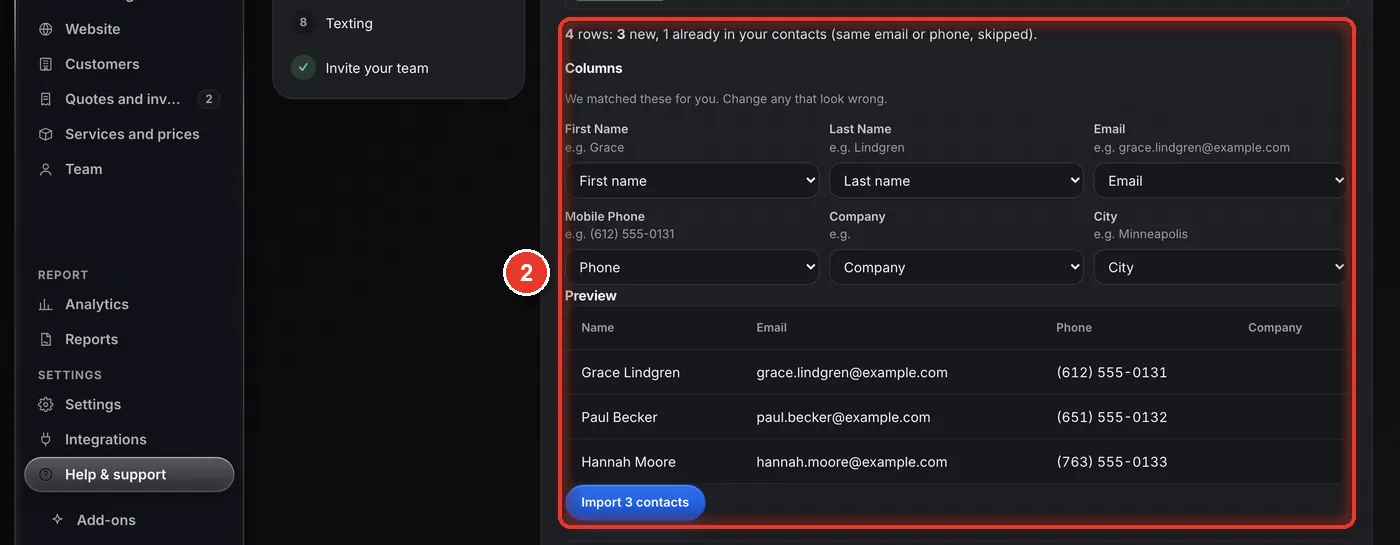
Import a CSV, Excel or vCard file. Columns are matched to contact fields for you, the preview shows how many people are new, and people you already have are not added twice.

  • CSV, Excel (.xlsx) or vCard (.vcf)
  • Automatic column matching
  • Undo a recent import
Bring your list over in minutes. Sample data in LoonStack CRM.

Find the right people fast

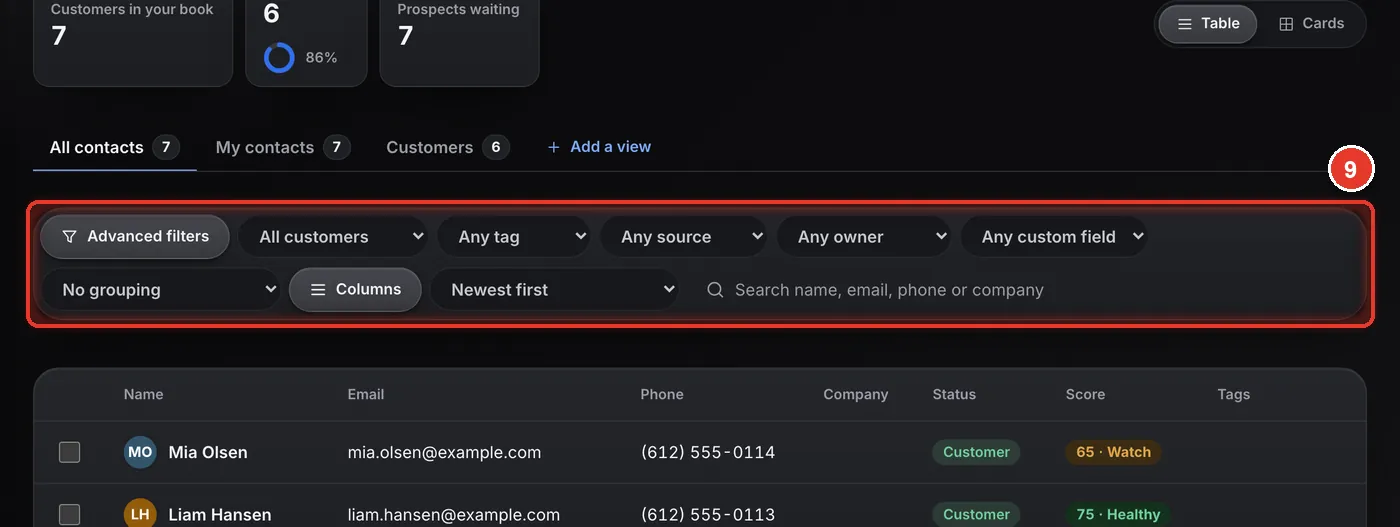
Search, or filter by lifecycle, tag, source and owner. Lifecycle tells you who is a lead, a customer or a past customer, and the source feeds the lead source report.

  • Lead, Customer, Past customer or Other
  • Tags, source and owner on every contact
  • Duplicates finder to merge copies
Find the right people fast. Sample data in LoonStack CRM.

Fields that match how you work

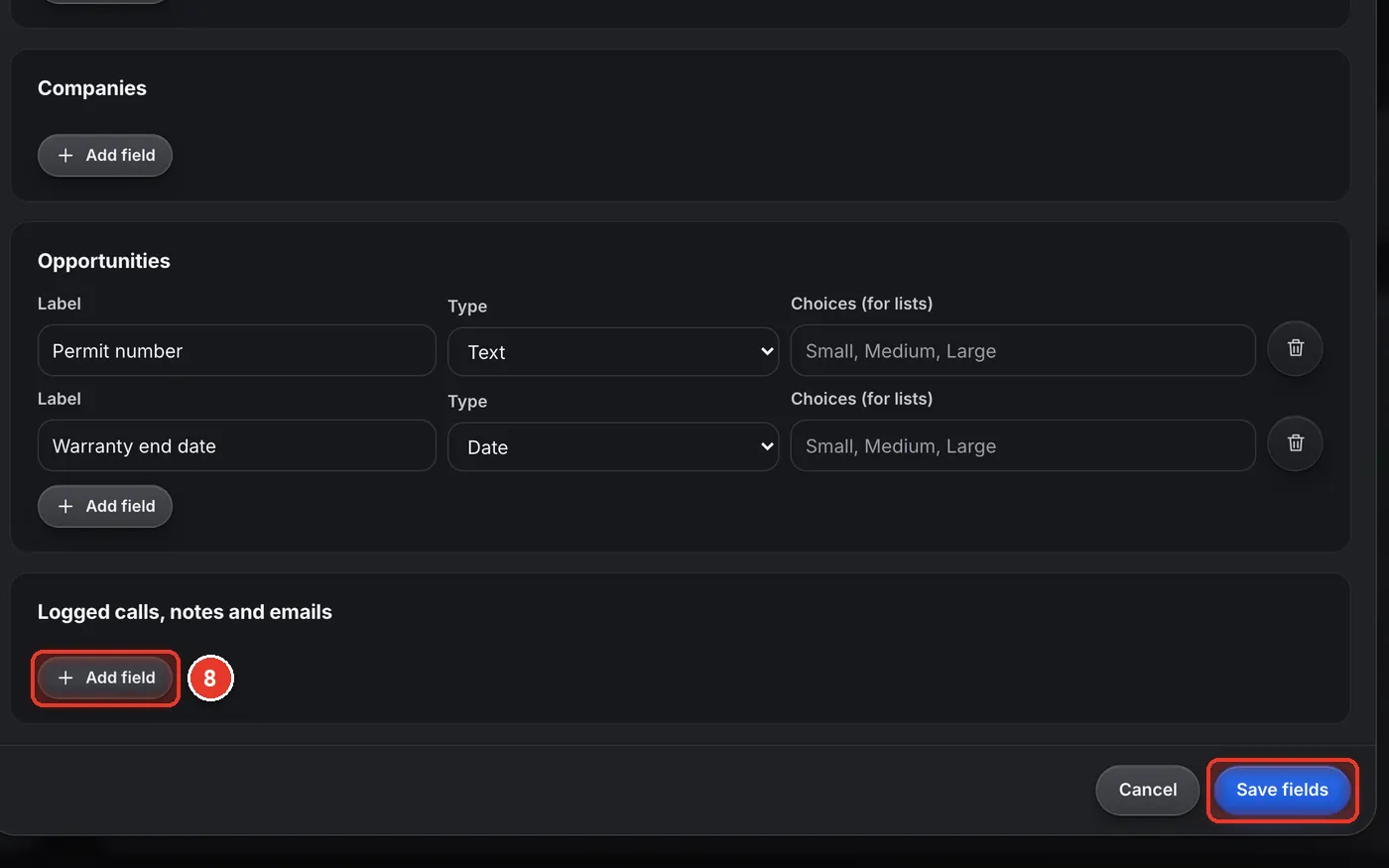
Add custom fields like a gate code or the age of a water heater. Marketing consent is its own checkbox, so only people who agreed get marketing email.

  • Custom fields on contacts
  • Agreed to receive marketing email checkbox
  • Everyone else gets service emails only
Fields that match how you work. Sample data in LoonStack CRM.

See it in action

Contacts, step by step, in screenshots of the real app with a made-up sample business. Use the buttons to move through it.

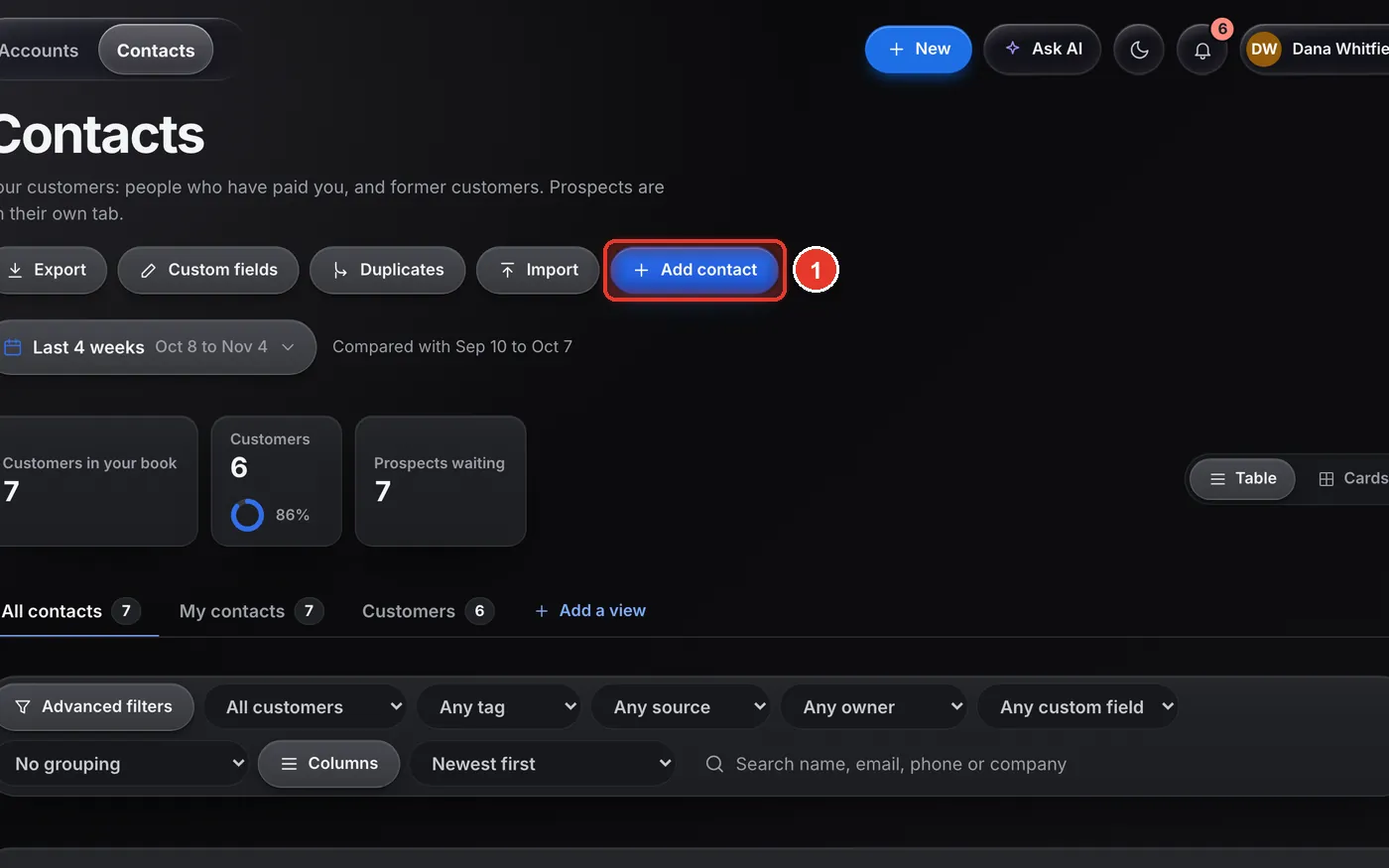
  1. The Contacts list with Add contact.
    Step 1 of 7 The Contacts list with Add contact.
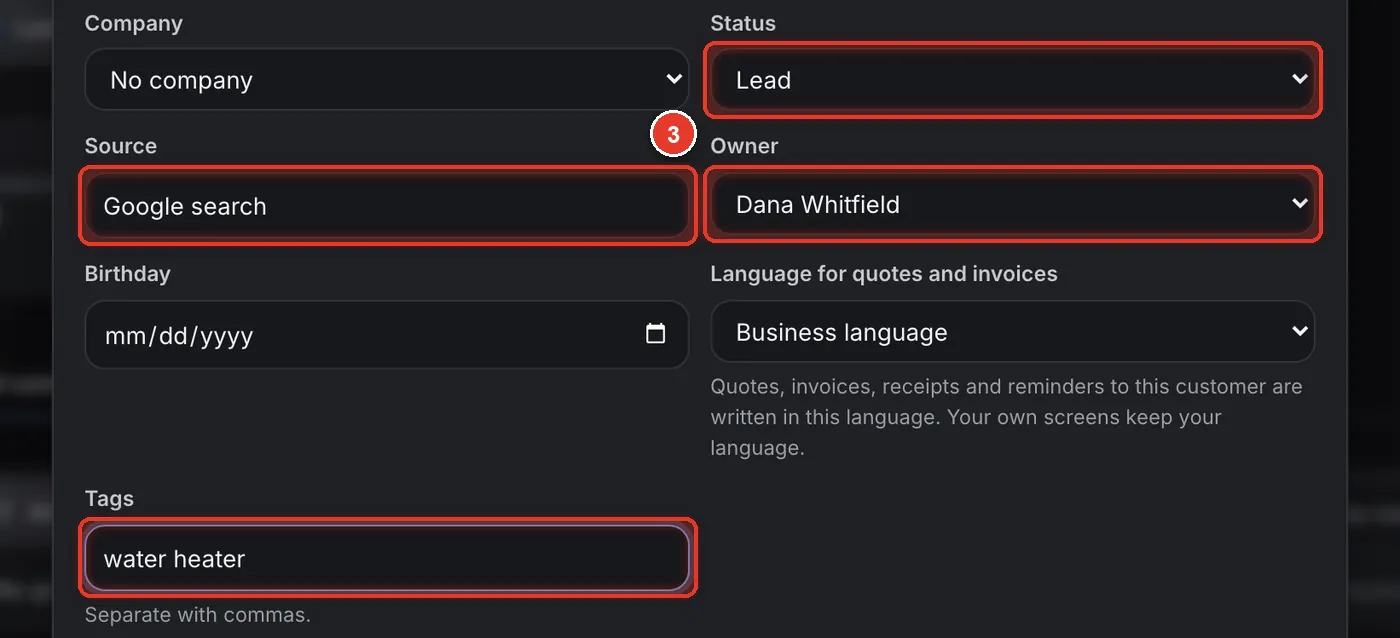
  2. Lifecycle, Source, Owner and Tags on each contact.
    Step 2 of 7 Lifecycle, Source, Owner and Tags on each contact.
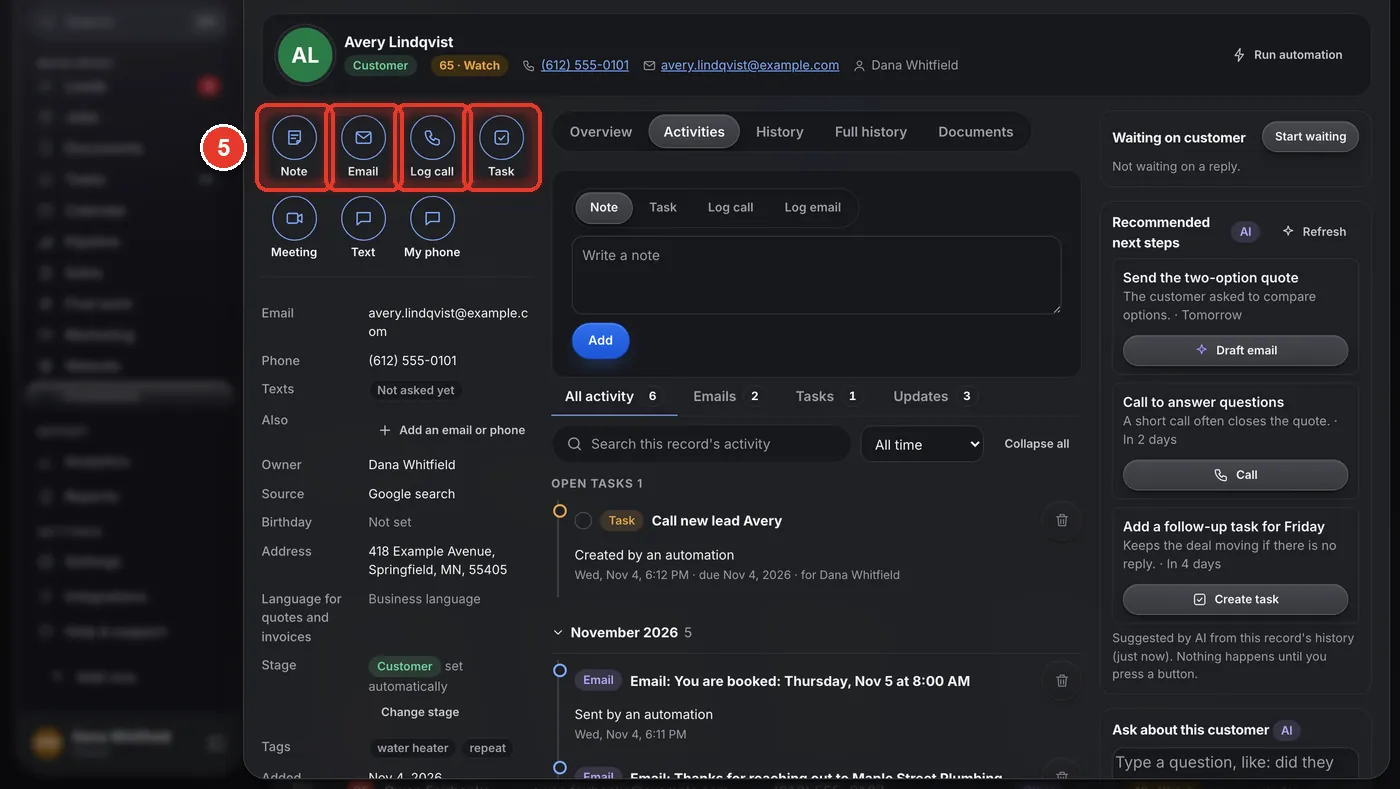
  3. Note, Task, Log call and Log email above the timeline.
    Step 3 of 7 Note, Task, Log call and Log email above the timeline.
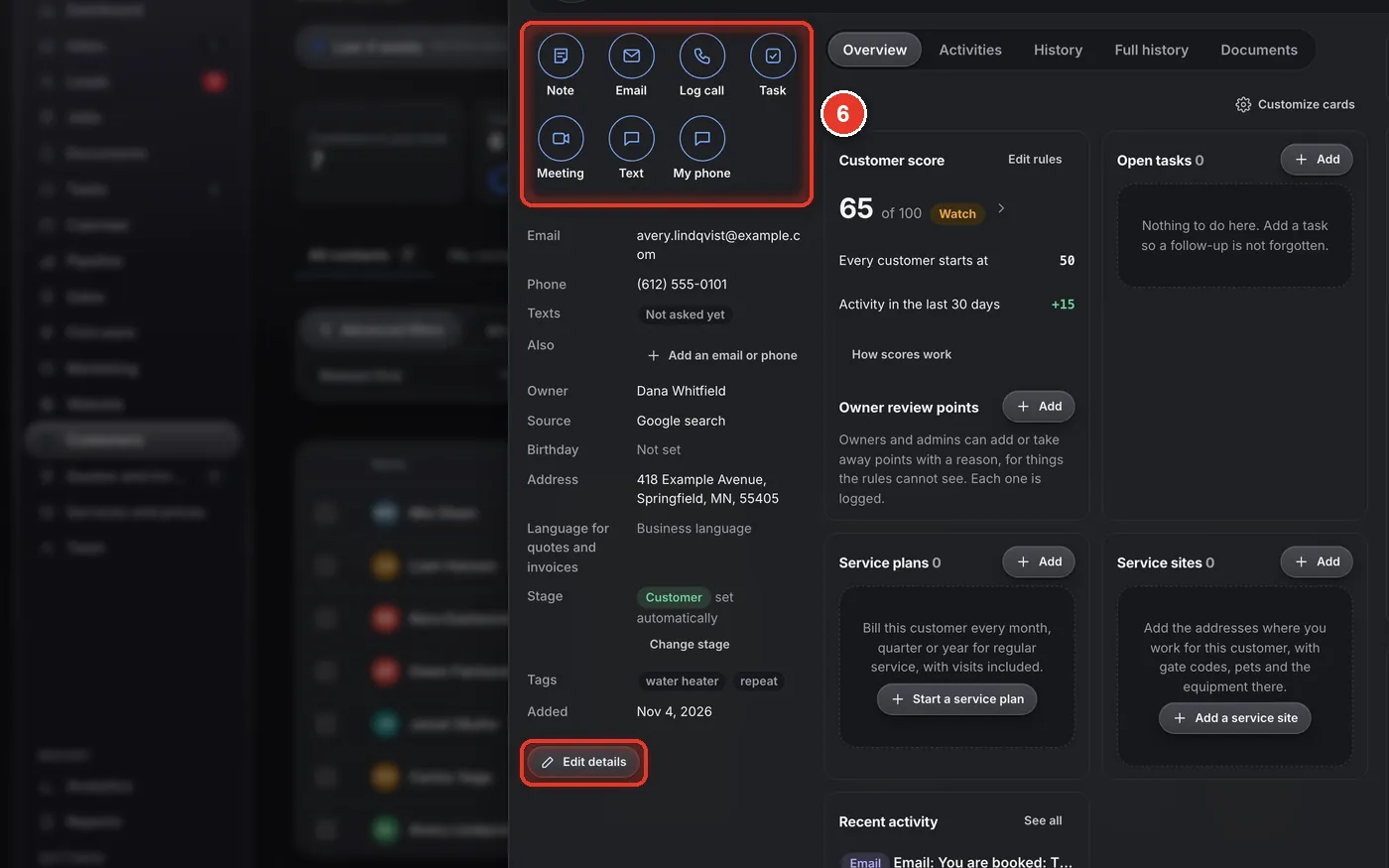
  4. Note, Email, Text, Log call, Task and Meeting at the top of the record.
    Step 4 of 7 Note, Email, Text, Log call, Task and Meeting at the top of the record.
  5. Search and filters by lifecycle, tag, source and owner.
    Step 5 of 7 Search and filters by lifecycle, tag, source and owner.
  6. Importing: each column is matched to a contact field.
    Step 6 of 7 Importing: each column is matched to a contact field.
  7. Custom fields: Add field, then Save fields.
    Step 7 of 7 Custom fields: Add field, then Save fields.

Contacts in the how-to guide, step by step

Why it helps

  • The full story in one place

    Anyone on your team can open a contact and see what was said, sent, signed and paid.

  • Switch without retyping

    Bring contacts from a spreadsheet or a phone contacts file, with columns matched for you.

  • Consent kept straight

    Marketing email goes only to people who agreed. Everyone else gets service emails only.

Everything in Contacts

Every plan includes every line below.

  • One list of every document

    Documents in the menu lists every quote, proposal, work order, agreement, signing request, invoice and uploaded file, each with one status: Draft, Sent, Viewed, Signed, Expired, Paid, Closed or Filed. Search it, filter by type, status or date, open any document, and press Next steps to get AI suggestions for one document. Nothing is sent for you, and you only see what your role may open.

  • Formula fields

    A custom field that works out its own number from your other fields, like profit on a deal or a price per square. Show it as a number, money or percent; it updates every time the record is saved.

  • A customer score that shows its math

    Click a customer's score, its band or any reason to see each rule that counted, the records behind it, where the score sits (At risk, Watch or Healthy) and what would move it up. How scores work explains the rules with your own point values.

  • A permanent file for every customer

    Open a customer and choose Full history: notes, calls, emails, texts, appointments, quotes, invoices, payments, agreements, work orders, photos, files, and equipment with its warranty dates, on one timeline you can search and filter by date and type. Documents keeps every quote, invoice, receipt, agreement, signed form and report, grouped by property and job, with when it was signed and by whom and every earlier version. Sent, signed and paid documents never change: an edit after sending is saved as a new version. Download everything gives you one ZIP with an index PDF.

  • History is never lost by mistake

    Deleted customers, deals, quotes, invoices and jobs go to Recently deleted, and after 30 days they stay there as Archived for owners and admins to restore. Removing a record for good takes an owner or admin, a written reason and a confirmation, and is logged. Merging two contacts moves the whole history and every document to the one you keep.

  • Text consent for every contact

    Each contact shows Agreed to texts, Opted out of texts or Not asked yet, with how and when. STOP and START replies update it, marketing texts go only to people who opted in, and a CSV import can carry consent columns.

  • Columns, group by and select all

    Choose which columns the list shows, including your own custom fields, group the list by type, owner, tag or a custom field, and select every contact that matches a filter to change them all at once.

  • Date ranges and compare

    Pick a period from presets such as This week, Last 30 days, This quarter or Year to date, or choose days on a calendar. The numbers, charts and trend tags compare it with the period before, or the same dates a year earlier.

  • Export what you see

    Export downloads exactly the filtered list on screen, as PDF, Word, Excel, PowerPoint, CSV or Google Sheets.

  • Change many at once

    Tick contacts in the list, then assign an owner, set the contact type, add or remove a tag, or delete. Deleted contacts can be brought back from Recently deleted.

  • Filter by a custom field

    Pick one of your own contact fields, such as property type or HOA status, and a value, in the list, a saved view or an export.

  • Saved views

    Save the current search and filters under a name, for just you or for everyone on the team. Your views sit as buttons above the filters, one tap to apply.

  • Recommended next steps

    AI suggests three to five next steps for a customer or deal from what is saved about them, with one tap to create the task, draft the message, call or schedule.

  • Stat tiles with charts

    The numbers at the top, such as open pipeline, money owed and work won, come with a small chart of the last eight weeks and a tag that says up or down compared with before. If there is not enough history to chart, you just see the number.

  • Unified timeline

    Emails, texts, quotes, invoices, meetings and appointments together.

  • Note, Task, Log call, Log email

    Add any of them above the timeline.

  • Lifecycle, source, owner and tags

    On every contact, used by filters and reports.

  • Search and filters

    By lifecycle, tag, source and owner, with Clear filters.

  • Import

    CSV, Excel or vCard, with automatic column matching and undo.

  • Duplicates

    Find likely copies and merge them.

  • Custom fields

    Add your own fields to contacts.

  • Link a file

    Save a share link to photos or paperwork.

  • Marketing consent

    Agreed to receive marketing email, kept per contact.

  • Export

    Lists to PDF, Word, Excel, PowerPoint, CSV or Google Sheets.

Contacts is in every plan

Plans differ only in how many people can sign in. Month to month, no setup fee.

LoonStack CRM Solo

30-day free trial

$69/month

1 user

Every feature included, Contacts too.

Start free trial of Solo

$0 today. Card required. 30-day free trial, then $69 a month, renewing automatically until you cancel. Cancel before day 30 in Billing and you pay nothing. To add a second person, switch to Crew in Billing.

LoonStack CRM Crew

Best for teams of 2 to 10

$129/month

Up to 10 users

Every feature included, Contacts too.

Start free trial of Crew

$0 today. Card required. 30-day free trial, then $129 a month, renewing automatically until you cancel. Cancel before day 30 in Billing and you pay nothing. We remind you 7, 3 and 1 day before the trial ends.

LoonStack CRM Company

30-day free trial

$199/month

Unlimited users

Every feature included, Contacts too.

Start free trial of Company

$0 today. Card required. 30-day free trial, then $199 a month, renewing automatically until you cancel. Cancel before day 30 in Billing and you pay nothing. We remind you 7, 3 and 1 day before the trial ends.

Switch between Solo, Crew and Company anytime from Billing in the CRM. Full pricing, website bundles and terms

See Contacts with your business in it

Every plan has every feature. 30-day free trial, $0 today. Cancel before day 30 and you pay nothing.

Questions first? Email [email protected] or request a call. A written reply usually comes within one business day.