Pipeline

See every open job, and what happens next

The pipeline shows every open deal as a card in a stage. Drag a card, pick a stage from its menu, or let it move on its own when a quote is signed, a deposit is paid or a job is done.

30-day free trial. $0 today, card required. Cancel before day 30 and you pay nothing.

A board that keeps itself current

Pipeline in LoonStack CRM: A board that keeps itself current. Sample data in LoonStack CRM.
15
industry stage sets, plus a general one
7 days
without activity puts a red edge on a card

What you can do with Pipeline

A board that keeps itself current

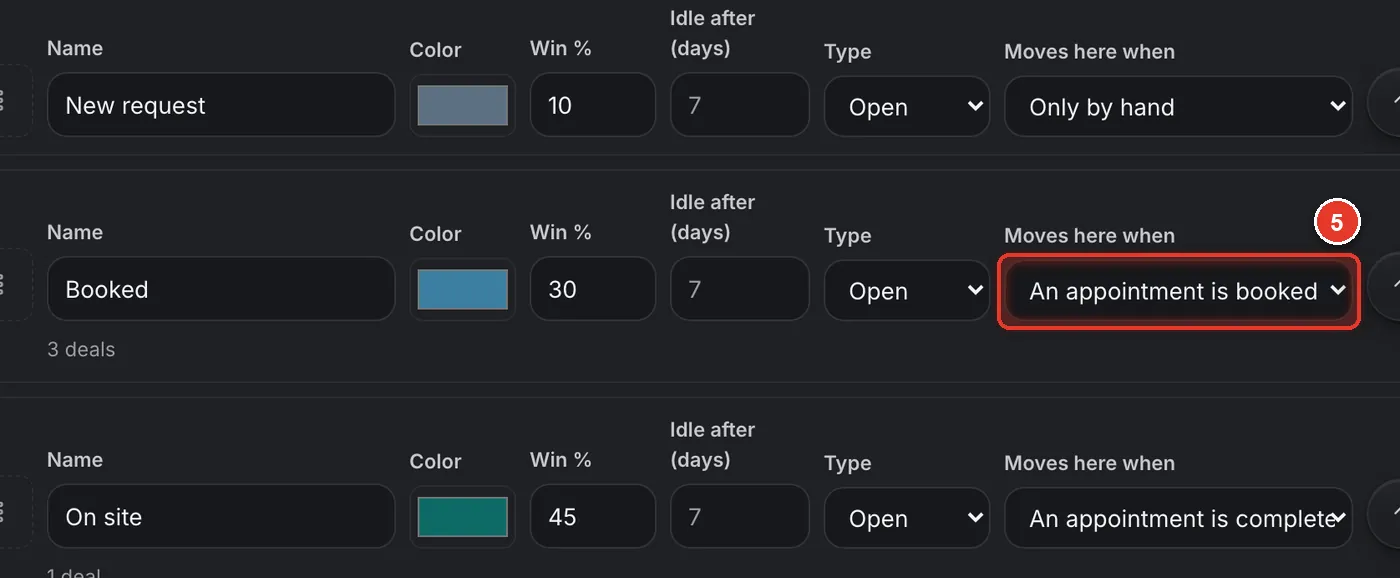
Set what moves a deal into each stage, like a booked appointment, a signed quote or a paid invoice. Deals move forward on their own and never move backwards on their own.

  • Drag a card, or pick a stage on the card
  • Automatic moves on signed, paid or done
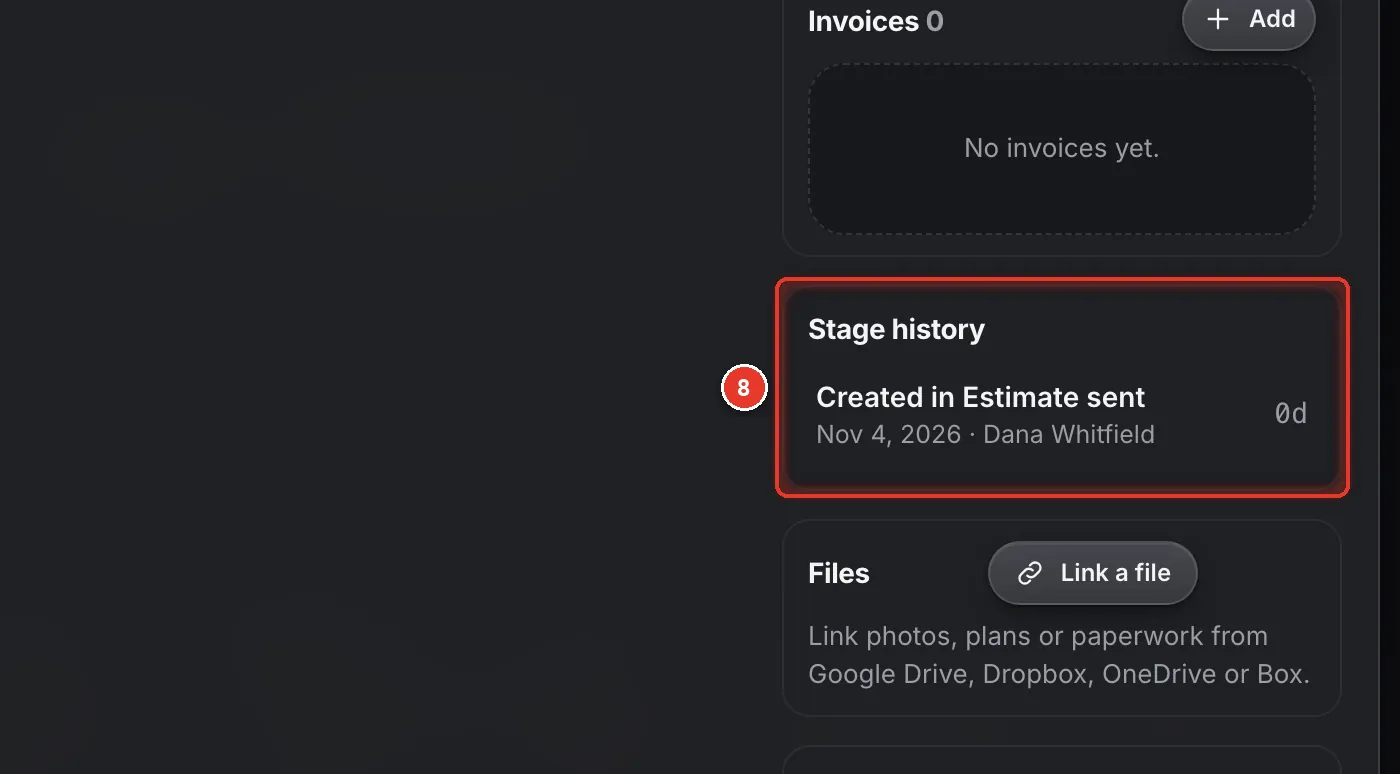
  • Stage history shows every move

Stages that fit your trade

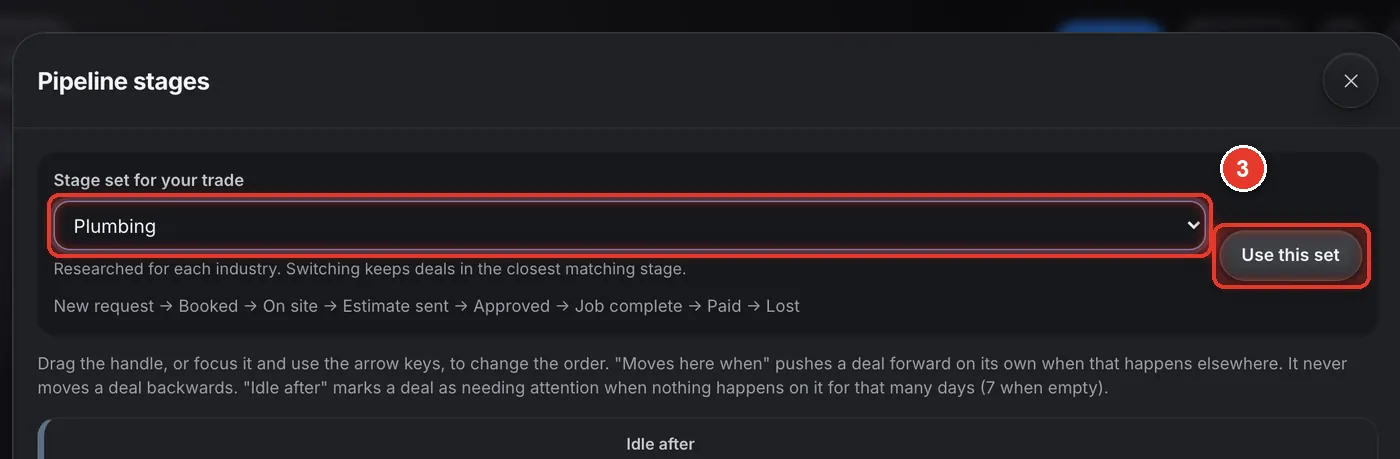
Pick a stage set built for your trade and press Use this set. Rename, recolor, reorder or add stages, set a win chance for each, and mark which ones count as won or lost.

  • 15 trade sets plus a general one
  • Name, color, win % and type per stage
  • Removed stages ask where their deals go
Stages that fit your trade. Sample data in LoonStack CRM.

Every deal carries a next step

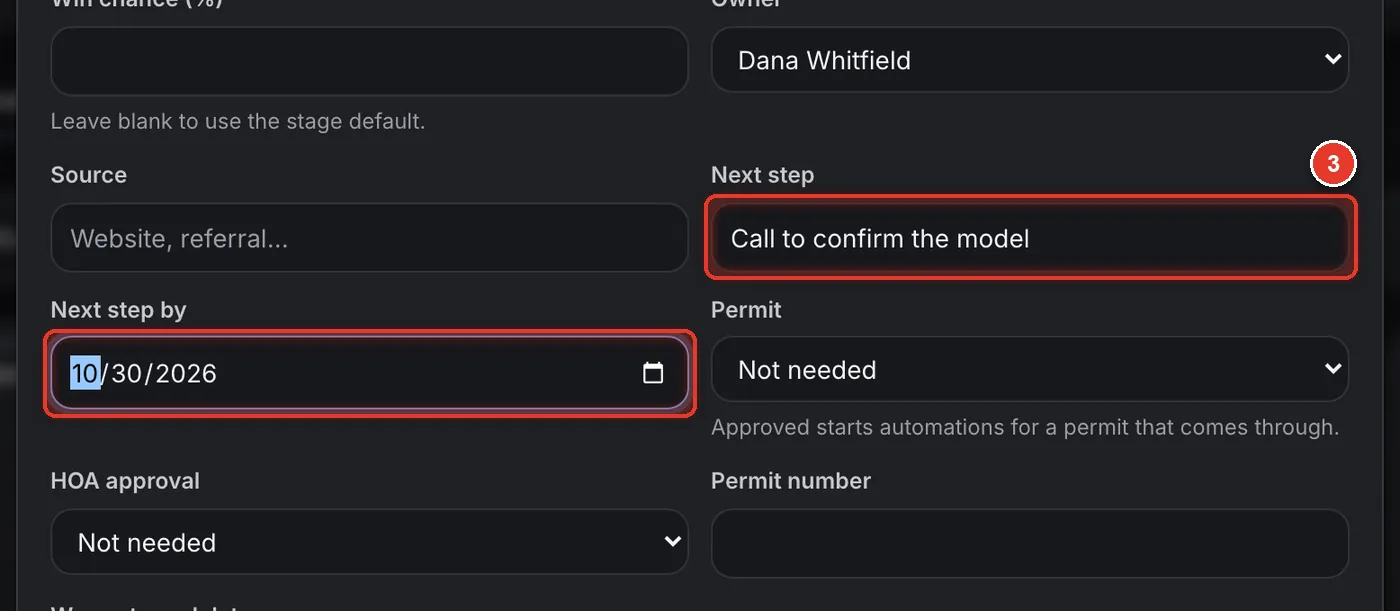
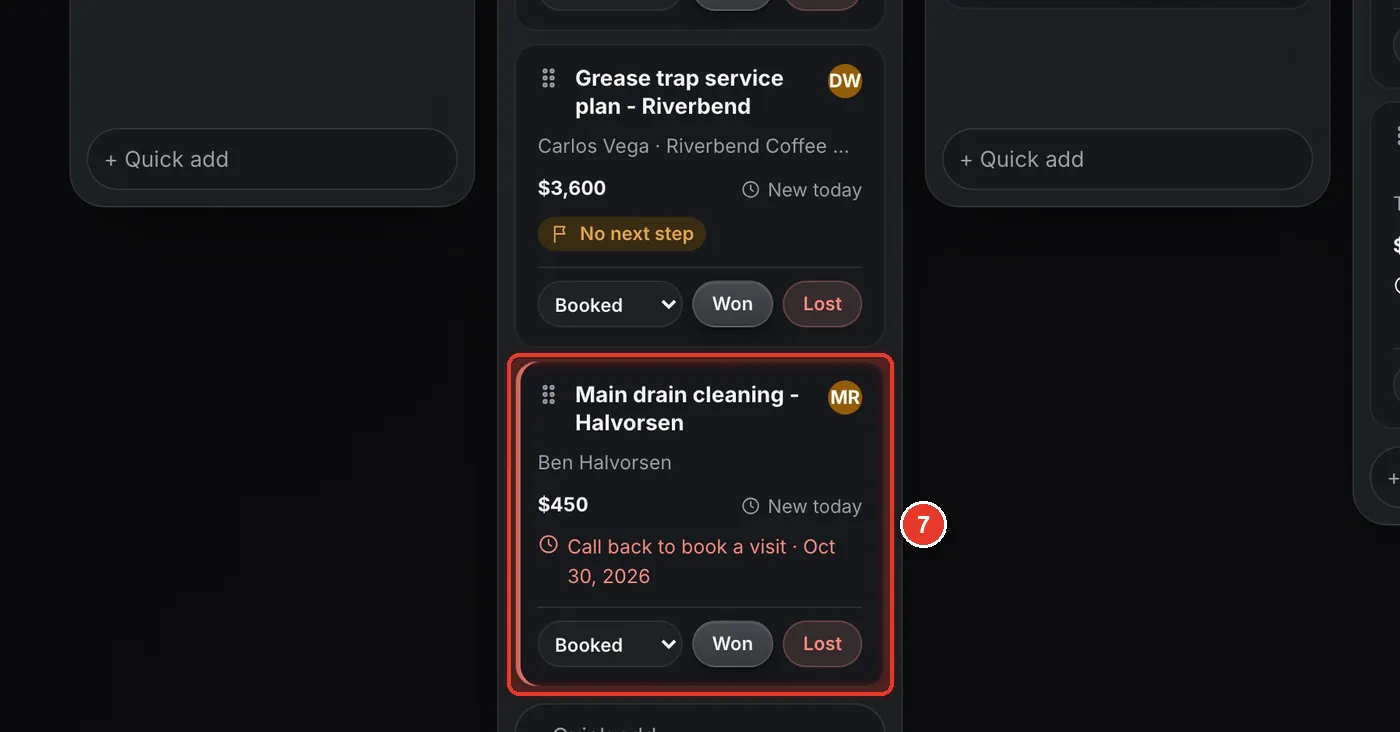
Each opportunity has an amount, an expected close date, a next step and a date for it. Deals with no next step show up on Today, and a card that has gone quiet or has an overdue next step gets a red edge.

  • Won and Lost, with a reason for lost
  • Reopen a closed deal
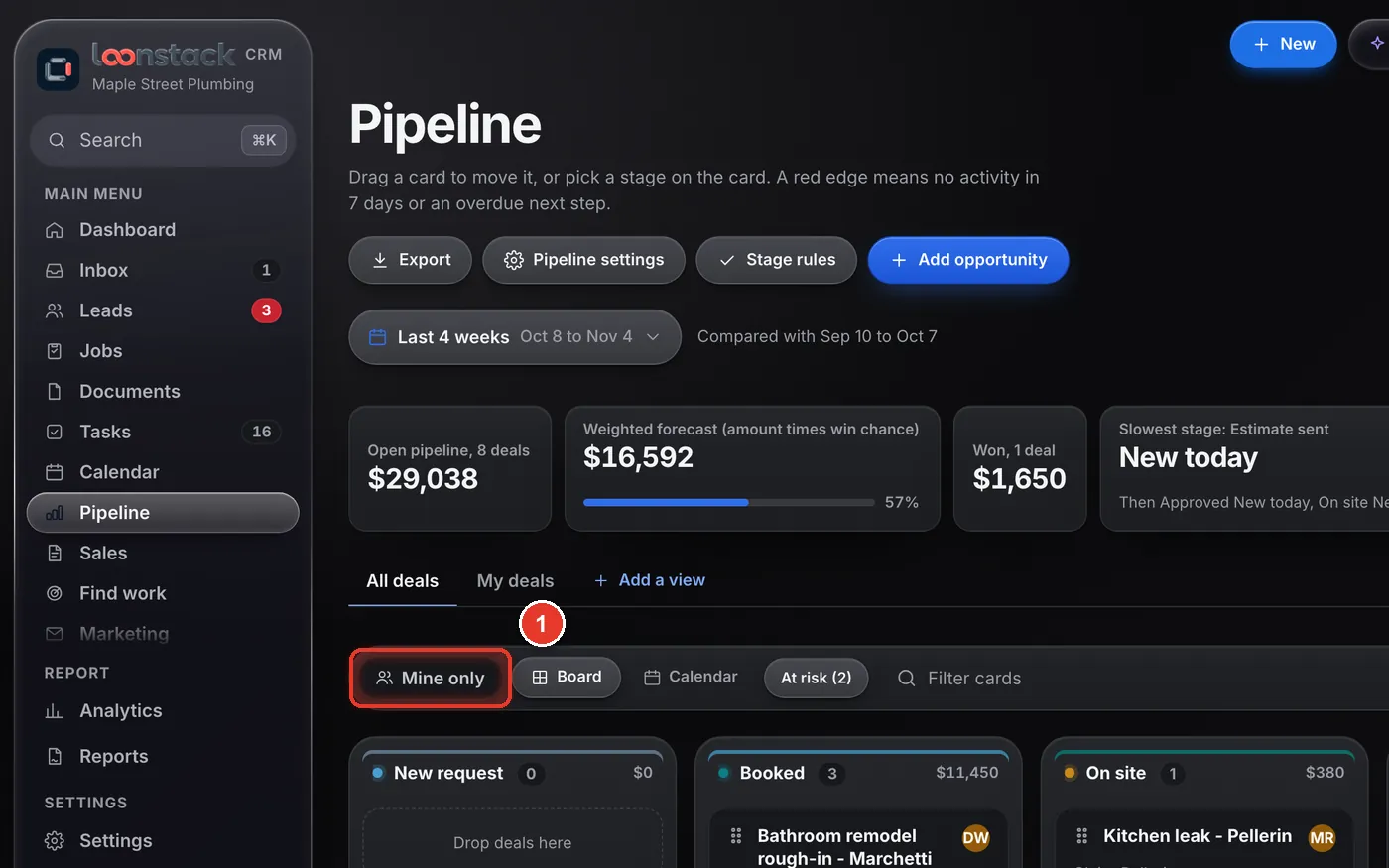
  • Everyone or Mine filter
Every deal carries a next step. Sample data in LoonStack CRM.

Work a deal without leaving it

Open a card to add a task, write an email with a drafted message, or send a quote by email with a preview of exactly what the customer will see.

  • Task, Email and Quote by email on the card
  • Totals and weighted value at the top
  • Filter cards by name
Work a deal without leaving it. Sample data in LoonStack CRM.

See it in action

Pipeline, step by step, in screenshots of the real app with a made-up sample business. Use the buttons to move through it.

  1. The Pipeline board, with the Everyone and Mine switch.
    Step 1 of 7 The Pipeline board, with the Everyone and Mine switch.
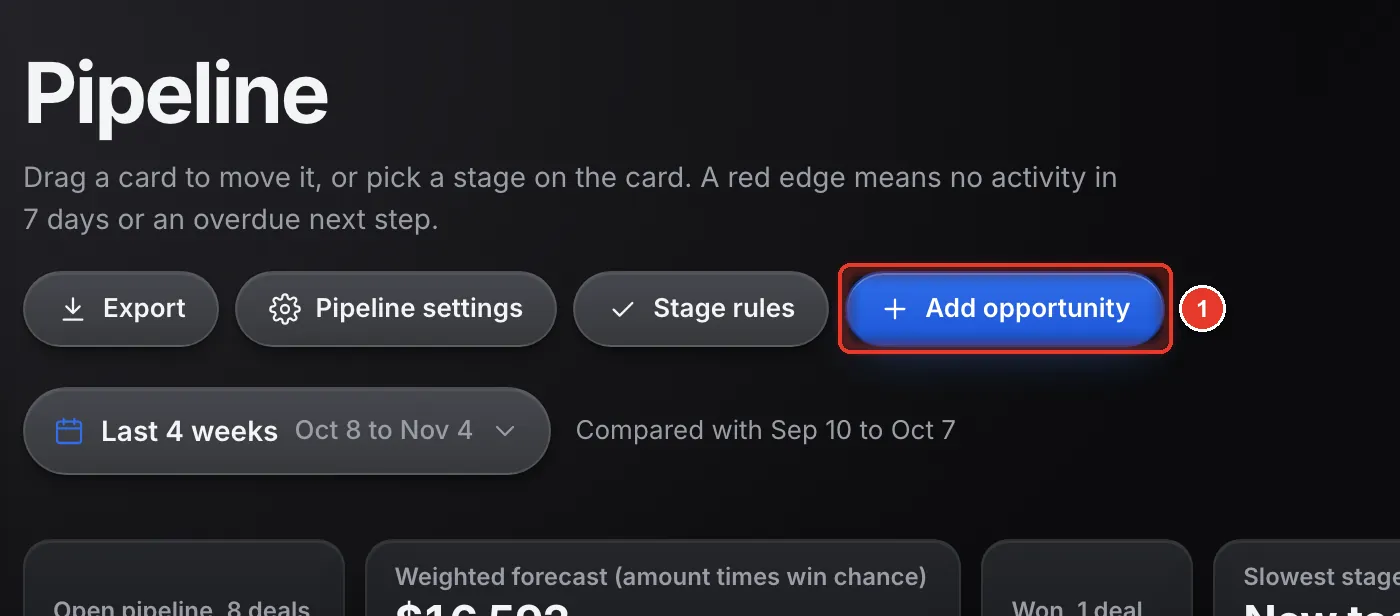
  2. Add opportunity at the top right.
    Step 2 of 7 Add opportunity at the top right.
  3. Every deal gets a Next step and a date.
    Step 3 of 7 Every deal gets a Next step and a date.
  4. Pick a stage set for your trade, then Use this set.
    Step 4 of 7 Pick a stage set for your trade, then Use this set.
  5. Moves here when: push deals forward on their own.
    Step 5 of 7 Moves here when: push deals forward on their own.
  6. A red left edge: the deal went quiet or its next step is overdue.
    Step 6 of 7 A red left edge: the deal went quiet or its next step is overdue.
  7. Stage history shows every move, including automatic ones.
    Step 7 of 7 Stage history shows every move, including automatic ones.

Pipeline in the how-to guide, step by step

Why it helps

  • Always current

    Signed quotes, paid invoices and booked visits move deals for you, so the board matches what happened.

  • Built for your trade

    Start from stages made for your kind of work and change any of them.

  • Usable without dragging

    Every card has a stage menu, so the board works with a keyboard and on a phone.

Everything in Pipeline

Every plan includes every line below.

  • Deals at risk

    Open deals get a warning when there is no next step, the next step is late, the customer has gone quiet for 14 days, the deal is stuck in a stage, or the close date has passed. The At risk button lists them, most warnings first.

  • Ask about this deal

    Ask a question on any deal or customer, like what you promised and by when, and get an answer from its meetings, the calls your AI receptionist took, and notes, with a link to the meeting or call it came from. Nothing is saved.

  • Ask the customer for photos

    On a deal, choose Ask for photos to make a private link that works for 14 days. Text or email it, and the customer adds up to 20 photos from their phone. They land in the job photos marked From customer, and you get a notice.

  • Days in stage

    Each open deal shows how many days it has been in its stage, turning amber after a week, and a Slowest stages tile shows where deals wait longest.

  • Saved views and calendar

    Save pipeline filters as views, or switch to a calendar of deals by expected close date and drag a deal to another day, with Undo.

  • Date ranges and compare

    Pick a period from presets such as This week, Last 30 days, This quarter or Year to date, or choose days on a calendar. The numbers, charts and trend tags compare it with the period before, or the same dates a year earlier.

  • Recommended next steps

    AI suggests three to five next steps for a customer or deal from what is saved about them, with one tap to create the task, draft the message, call or schedule.

  • Stat tiles with charts

    The numbers at the top, such as open pipeline, money owed and work won, come with a small chart of the last eight weeks and a tag that says up or down compared with before. If there is not enough history to chart, you just see the number.

  • Drag-and-drop board

    Every open deal as a card in its stage.

  • Stage menu on each card

    Move a deal without dragging.

  • 15 trade stage sets

    Plus a general set and a stage editor.

  • Automatic stage moves

    On a booked visit, a signed quote, a paid invoice or a finished job.

  • Next step and date

    On every deal, with deals missing one listed on Today.

  • Quiet deal warning

    A red edge after 7 days without activity or an overdue next step.

  • Won and Lost

    With lost reasons that show up in reports.

  • Stage history

    Every move, by a person or automatic.

  • Everyone or Mine

    Filter the board to your own deals.

  • Quote by email

    Edit To, Subject and Message and preview what they will see.

  • Export

    The pipeline to PDF, Word, Excel, PowerPoint, CSV or Google Sheets.

  • Goals

    Weekly, monthly, quarterly or yearly goals for deals added, deals won, deals reaching a stage, tasks done or revenue forecast, for one person or the whole business. Each shows On track, Behind or Reached.

  • Idle days per stage

    Each stage sets how many quiet days make a deal stale. Empty means 7.

  • Competitors

    Note the competitors you met on a deal and who you lost to, with their price.

Pipeline is in every plan

Plans differ only in how many people can sign in. Month to month, no setup fee.

LoonStack CRM Solo

30-day free trial

$69/month

1 user

Every feature included, Pipeline too.

Start free trial of Solo

$0 today. Card required. 30-day free trial, then $69 a month, renewing automatically until you cancel. Cancel before day 30 in Billing and you pay nothing. To add a second person, switch to Crew in Billing.

LoonStack CRM Crew

Best for teams of 2 to 10

$129/month

Up to 10 users

Every feature included, Pipeline too.

Start free trial of Crew

$0 today. Card required. 30-day free trial, then $129 a month, renewing automatically until you cancel. Cancel before day 30 in Billing and you pay nothing. We remind you 7, 3 and 1 day before the trial ends.

LoonStack CRM Company

30-day free trial

$199/month

Unlimited users

Every feature included, Pipeline too.

Start free trial of Company

$0 today. Card required. 30-day free trial, then $199 a month, renewing automatically until you cancel. Cancel before day 30 in Billing and you pay nothing. We remind you 7, 3 and 1 day before the trial ends.

Switch between Solo, Crew and Company anytime from Billing in the CRM. Full pricing, website bundles and terms

See Pipeline with your business in it

Every plan has every feature. 30-day free trial, $0 today. Cancel before day 30 and you pay nothing.

Questions first? Email [email protected] or request a call. A written reply usually comes within one business day.