Invoices

Get paid through the account you already use

Turn a signed quote into an invoice, send it with a pay button, and record cash and checks by hand. Customers pay through your own processor, so the money goes straight to you.

30-day free trial. $0 today, card required. Cancel before day 30 and you pay nothing.

16 processors, no added fees

Invoices in LoonStack CRM: 16 processors, no added fees. Sample data in LoonStack CRM.
16
payment processors built in
0%
added by LoonStack on payments

What you can do with Invoices

16 processors, no added fees

Connect Stripe, Square, PayPal, Authorize.net, Braintree, Helcim, Clover, QuickBooks Payments, Stax, GoCardless, NMI, Adyen, Checkout.com, Mollie, SumUp or Razorpay. Each has a Test connection button. Any other processor works through its payment link.

  • Money goes straight to you
  • LoonStack adds no fees
  • Keys stored encrypted

From signed quote to invoice in one click

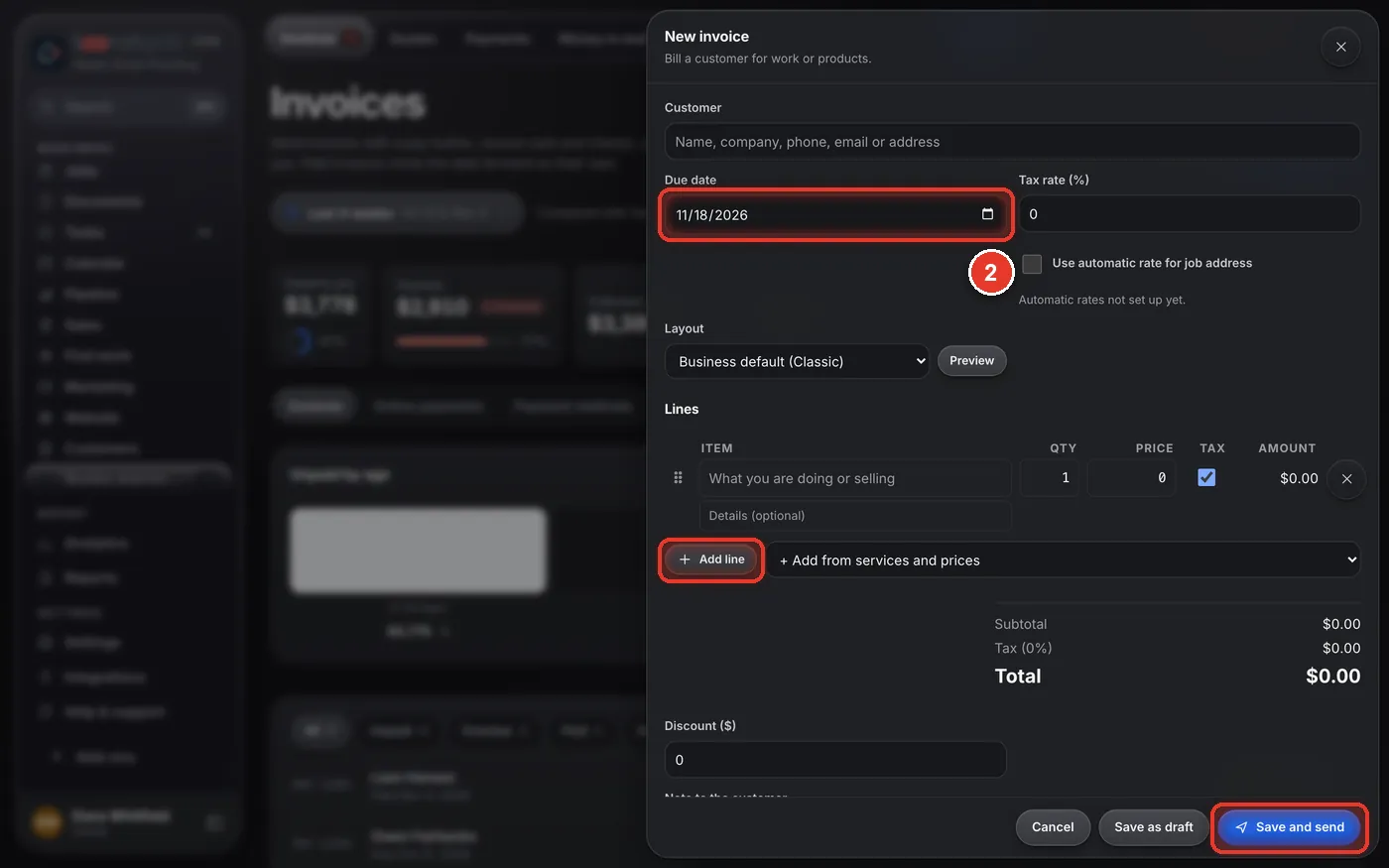
Create final invoice appears on a signed quote. Set the due date, add lines and choose Save and send. A paid invoice moves the deal forward on its own.

  • Save and send with a pay link
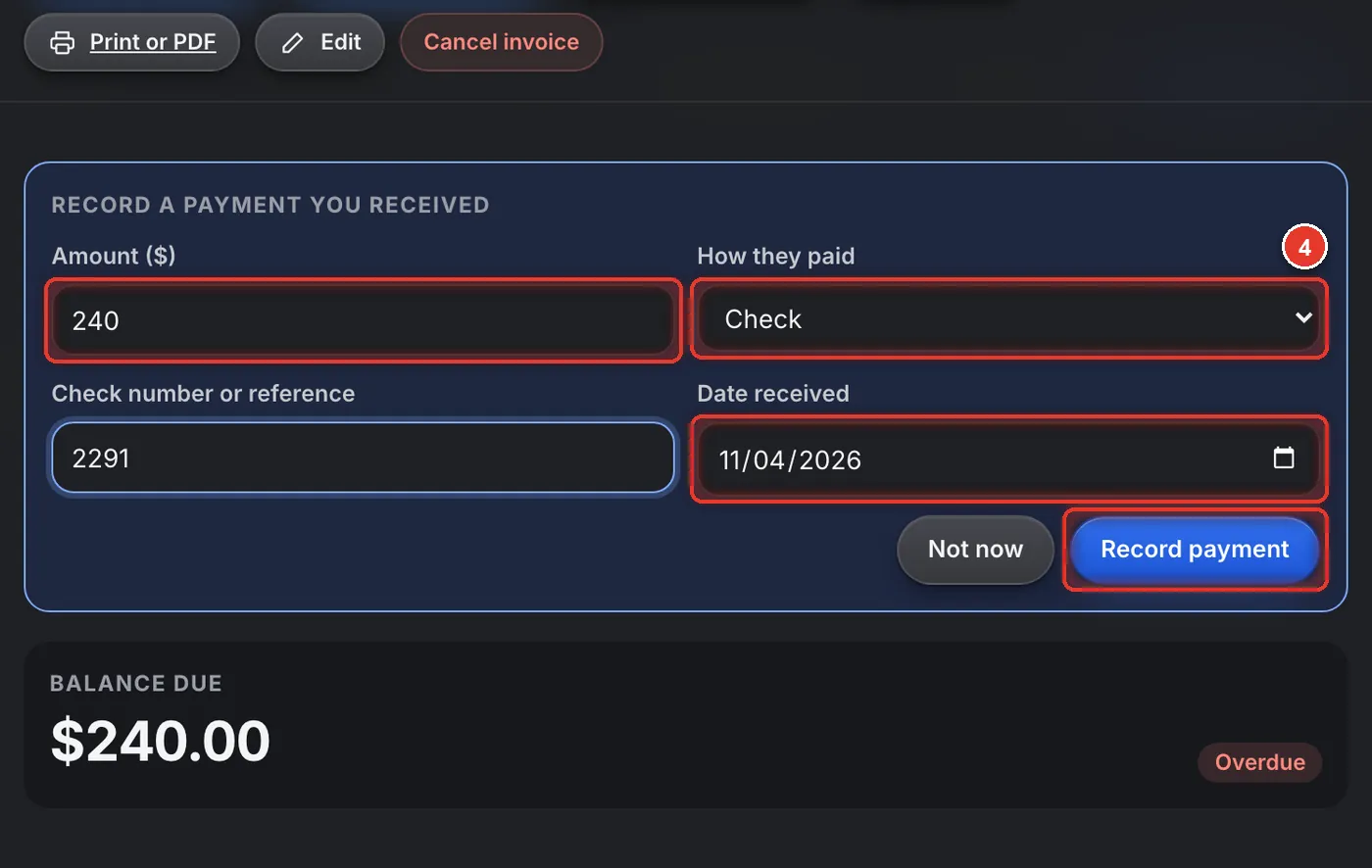
  • Record payment for cash or a check
  • Cancel invoice before any payment
From signed quote to invoice in one click. Sample data in LoonStack CRM.

Polite reminders, without the awkward email

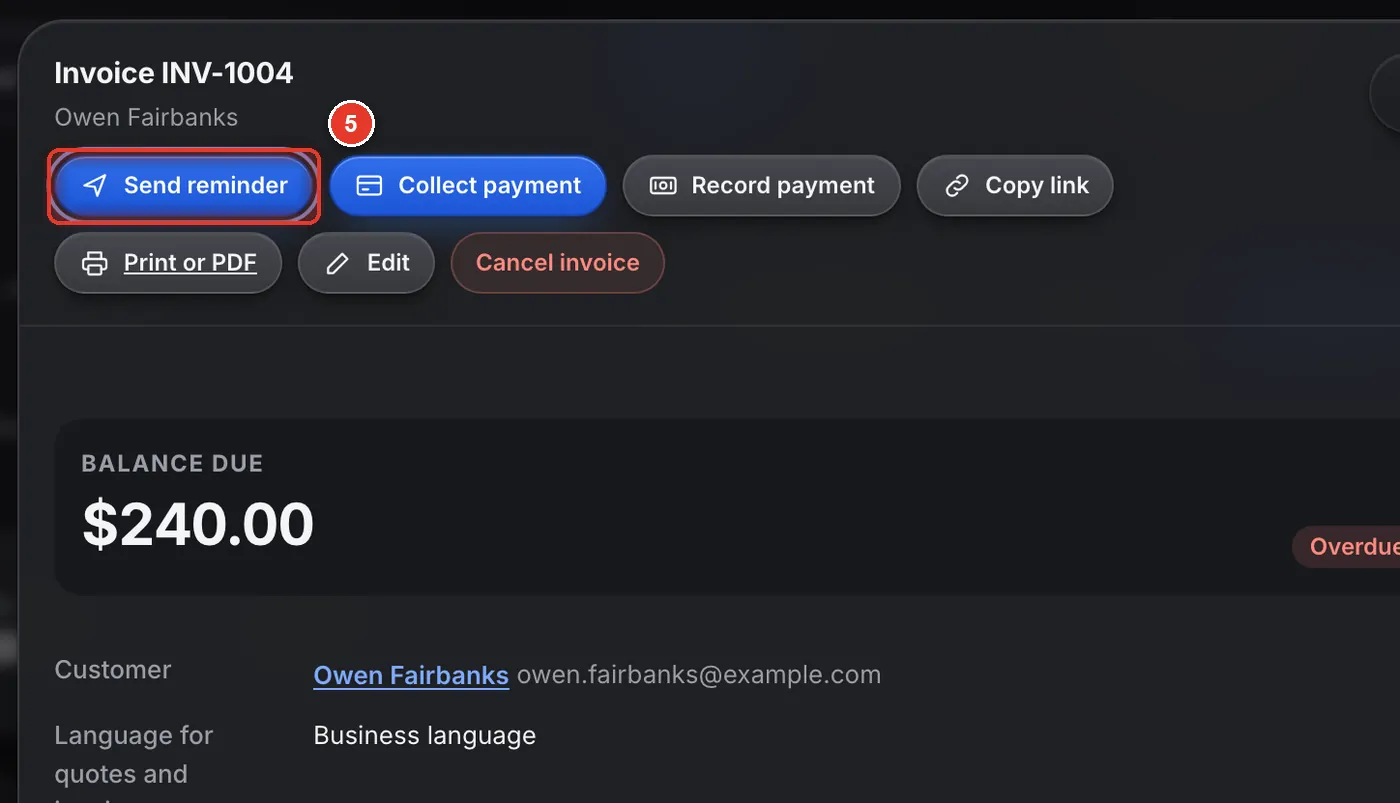
Turn on the overdue reminders once and overdue invoices get a friendly nudge with a pay link, then another a week later. On any unpaid invoice, Send reminder emails the customer again.

  • Overdue reminders stop when paid
  • Send reminder by hand any time
  • Money owed on Today
Polite reminders, without the awkward email. Sample data in LoonStack CRM.

See it in action

Invoices, step by step, in screenshots of the real app with a made-up sample business. Use the buttons to move through it.

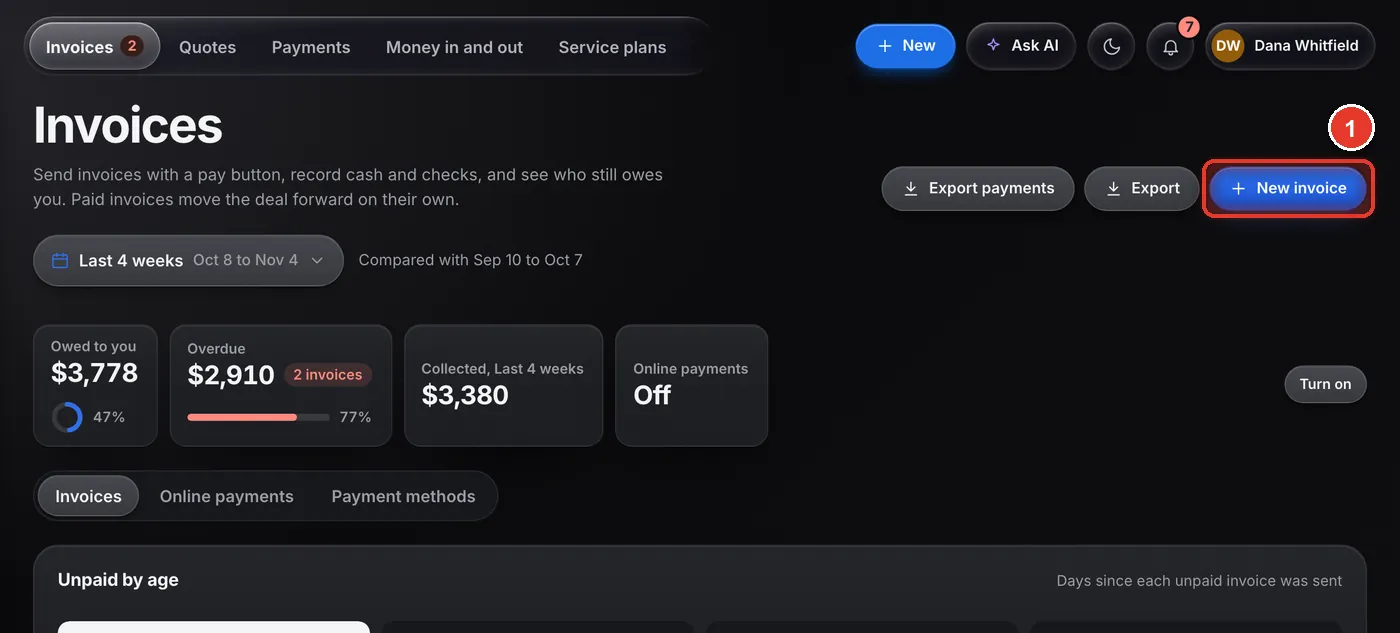
  1. Invoices, with New invoice.
    Step 1 of 6 Invoices, with New invoice.
  2. Due date, Add line, and Save and send.
    Step 2 of 6 Due date, Add line, and Save and send.
  3. Record payment: cash, check or other.
    Step 3 of 6 Record payment: cash, check or other.
  4. Send reminder on an overdue invoice.
    Step 4 of 6 Send reminder on an overdue invoice.
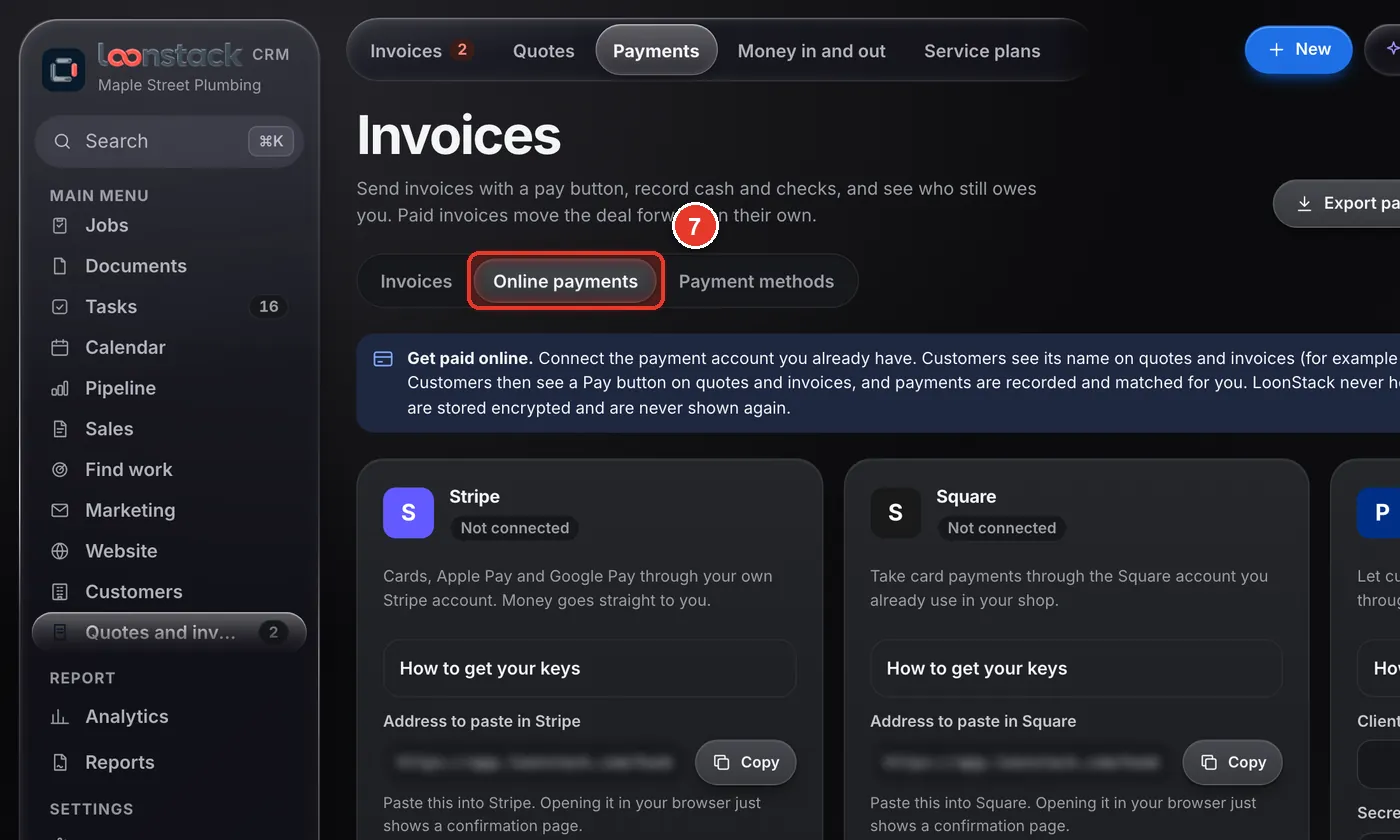
  5. The Online payments tab.
    Step 5 of 6 The Online payments tab.
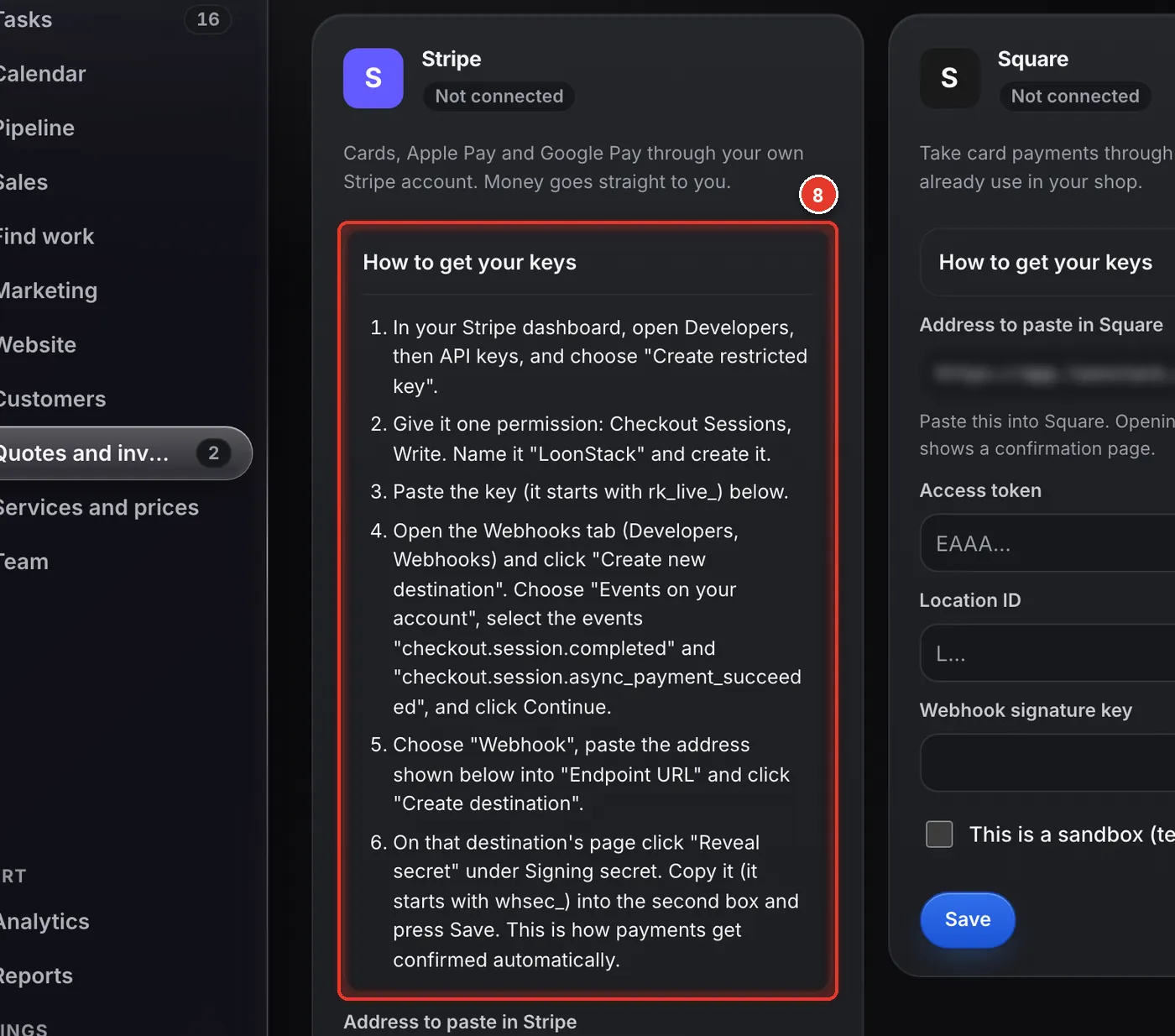
  6. Step-by-step keys for your processor, like Stripe.
    Step 6 of 6 Step-by-step keys for your processor, like Stripe.

Invoices in the how-to guide, step by step

Why it helps

  • Paid faster

    A pay button on every invoice, through the processor you already trust.

  • Keep all of it

    LoonStack adds no fees on top of your processor.

  • Less chasing

    Overdue reminders go out on their own once you turn them on.

Everything in Invoices

Every plan includes every line below.

  • Collect payment at the door or on the phone

    On an invoice or a work order, choose Collect payment and pick the amount: the full balance, a deposit or another amount. The customer can scan a QR code or get a texted link and pay on their own phone, or you take cash or a check (the check number and a photo) and the customer signs on your phone. With Stripe or Square connected you can also use their card readers, or type the card on the secure checkout page. The money goes to your own payment account (your usual Stripe or Square fees apply; LoonStack adds none), the invoice is marked paid and the receipt goes out. Cash and checks work with no signal. An owner turns each way to pay on in Invoices, Payment methods. Owners and admins can always collect and office staff can unless you say no; field crew can only when you allow it, and then they see only the invoice they are collecting.

  • Refunds with approval

    Refund all or part of a payment right from the invoice. Stripe and Square refunds go back through your own account. Cash, checks and other processors are recorded with the reason, and you return the money yourself. You choose who may refund (out of the box, only owners and admins) and can set a limit per refund. A refund over the limit, or by someone not on your list, waits for approval. The owner can approve any request; someone on your list can approve one only within their own limit. You can refund part of a payment and more later, but never more than was paid, and every refund is logged with who did it.

  • Change the job total after a deposit

    On a signed quote, Job total and balance shows the signed price, each change order and adjustment, the new job total, what has been paid and what is still due on the final invoice. Adjust remaining balance raises or cuts the job total, with a reason that shows on the final invoice; only owners and admins see it, and every change is logged. The deposit always stays and counts toward the job. Example: a $10,000 job with $3,000 down gets cut by $1,000. The new total is $9,000 and $6,000 is due on the final invoice. Nothing is refunded. Only if the new total drops below what was already paid does the CRM show the difference with a button to refund it.

  • Every payment gets its follow-up

    The thank-you, the receipt and anything else you set to happen after a payment now happen for every payment, including the second and third payment on one invoice, even if something goes wrong partway through. The invoice link in automated emails and texts always opens the invoice page with the current balance.

  • Buttons that show what happened

    Delete, Upload, Download and Send play a short animation that follows the real result: uploads and downloads show true progress, and you only see Deleted, Uploaded, Downloaded or Sent after the server confirms. If something fails, the button says so, for example Not sent. With reduced motion turned on in your device, the animation is replaced by a simple change.

  • Your colors on every document

    Pick the color of your quotes, invoices, receipts, work orders and agreements: your brand colors, a theme color or your own. Your license number, tax ID and the name under the signature line fill in from your business profile, so nothing is typed twice.

  • Date ranges and compare

    Pick a period from presets such as This week, Last 30 days, This quarter or Year to date, or choose days on a calendar. The numbers, charts and trend tags compare it with the period before, or the same dates a year earlier.

  • Five more quote and invoice layouts

    Letterhead, Modern, Contractor, Elegant serif and Two column, with your logo, brand color, address and license number. Pick US Letter or A4 and a font in Templates, and every layout prints cleanly to PDF.

  • Stat tiles with charts

    The numbers at the top, such as open pipeline, money owed and work won, come with a small chart of the last eight weeks and a tag that says up or down compared with before. If there is not enough history to chart, you just see the number.

  • Invoices

    New, or from a signed quote in one click.

  • Pay online

    A pay button on the invoice link.

  • 16 processors

    Stripe, Square, PayPal, Authorize.net, Braintree, Helcim, Clover, QuickBooks Payments, Stax, GoCardless, NMI, Adyen, Checkout.com, Mollie, SumUp and Razorpay, or any payment link.

  • No added fees

    Money goes straight to your account.

  • Test connection

    Checks your keys with your processor.

  • Record payment

    Cash, check or other, with the date received.

  • Overdue reminders

    Turn on once; they stop when paid.

  • Send reminder

    Email the customer again by hand.

  • Cancel invoice

    Before any payment, the customer is told nothing is owed.

  • Deal moves on paid

    A paid invoice moves the deal forward.

  • Encrypted keys

    Stored encrypted and never shown again.

  • Cash flow

    The next 13 weeks of open invoices against your bills, from the cash in the bank today. Weeks under $0 are flagged.

  • Tax set-aside

    How much of what you collected to put aside for the current estimated-tax period, with its due date. A planning number, not tax advice.

  • What to charge

    Your break-even and target hourly rate, and a suggested price for each service in your price list.

  • QuickBooks Desktop export

    Customers, invoices and payments for any dates as an .iif file that QuickBooks Desktop imports. No account needed.

Invoices is in every plan

Plans differ only in how many people can sign in. Month to month, no setup fee.

LoonStack CRM Solo

30-day free trial

$69/month

1 user

Every feature included, Invoices too.

Start free trial of Solo

$0 today. Card required. 30-day free trial, then $69 a month, renewing automatically until you cancel. Cancel before day 30 in Billing and you pay nothing. To add a second person, switch to Crew in Billing.

LoonStack CRM Crew

Best for teams of 2 to 10

$129/month

Up to 10 users

Every feature included, Invoices too.

Start free trial of Crew

$0 today. Card required. 30-day free trial, then $129 a month, renewing automatically until you cancel. Cancel before day 30 in Billing and you pay nothing. We remind you 7, 3 and 1 day before the trial ends.

LoonStack CRM Company

30-day free trial

$199/month

Unlimited users

Every feature included, Invoices too.

Start free trial of Company

$0 today. Card required. 30-day free trial, then $199 a month, renewing automatically until you cancel. Cancel before day 30 in Billing and you pay nothing. We remind you 7, 3 and 1 day before the trial ends.

Switch between Solo, Crew and Company anytime from Billing in the CRM. Full pricing, website bundles and terms

See Invoices with your business in it

Every plan has every feature. 30-day free trial, $0 today. Cancel before day 30 and you pay nothing.

Questions first? Email [email protected] or request a call. A written reply usually comes within one business day.