Tasks

Every to-do has a time and a person

Add a task from any contact or deal, pick who it is for and when, and choose a reminder. It reaches that person in the bell, by email and as a phone alert.

30-day free trial. $0 today, card required. Cancel before day 30 and you pay nothing.

Reminders that reach the right person

Tasks in LoonStack CRM: Reminders that reach the right person. Sample data in LoonStack CRM.

What you can do with Tasks

Reminders that reach the right person

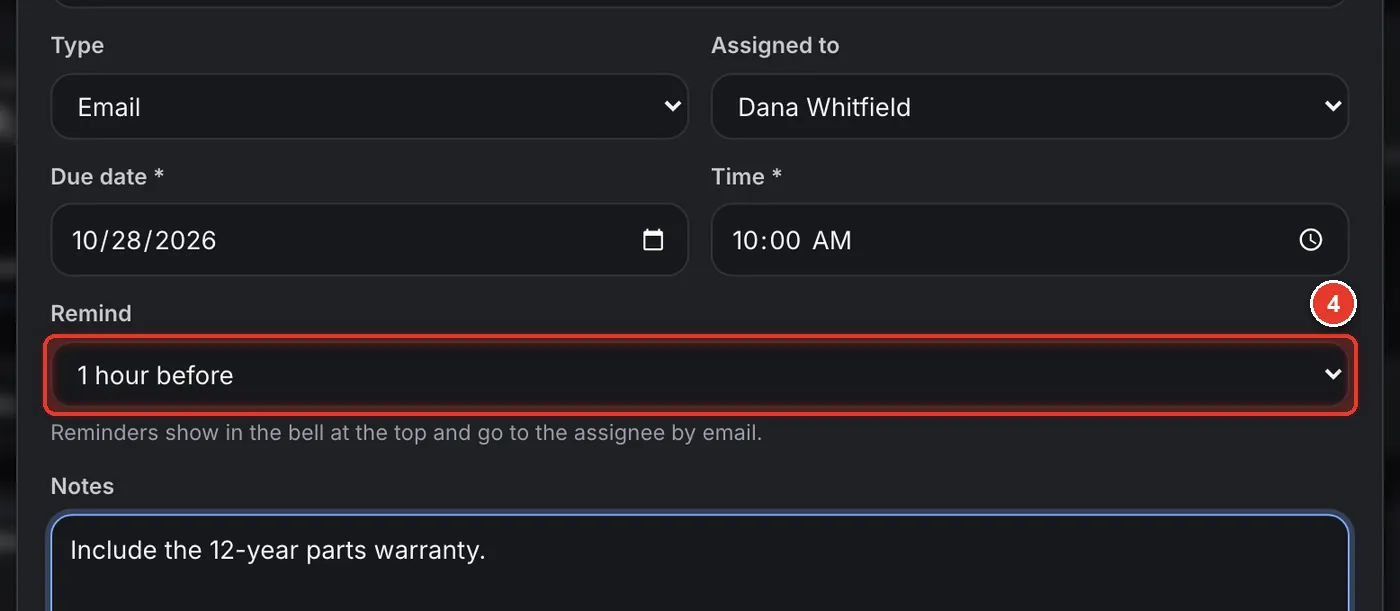
Pick a reminder at the due time, 15 minutes, 1 hour or 1 day before. The person it is assigned to gets it in the bell, by email, and on their phone if they turned alerts on.

  • Assigned to anyone on the team
  • Five reminder choices
  • Phone alerts on iPhone and Android

Due, Upcoming and Done

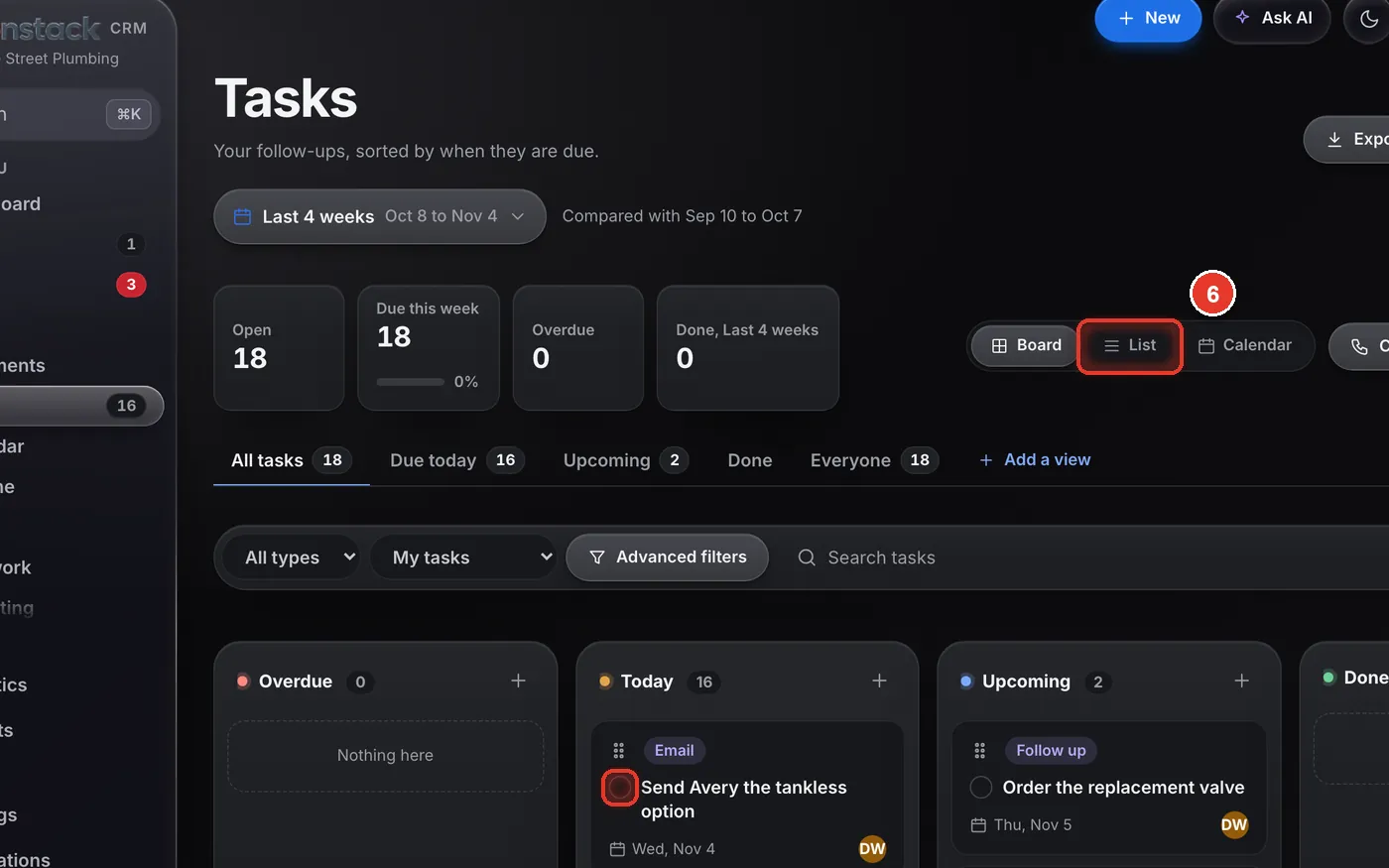
The Tasks page splits work into Due, Upcoming and Done. Tick the circle to finish a task. Each task has a type, like Follow up, Call, Email, Text or Quote.

  • Tick to mark done
  • Six task types
  • Quick add without a reminder
Due, Upcoming and Done. Sample data in LoonStack CRM.

Tasks that start themselves

Automations can create tasks, like a call-back task for every new lead or a task when a big deal goes quiet. Today lists every task that is due.

  • Create task step in automations
  • Due tasks on Today
  • Draft email or text from the task
Tasks that start themselves. Sample data in LoonStack CRM.

See it in action

Tasks, step by step, in screenshots of the real app with a made-up sample business. Use the buttons to move through it.

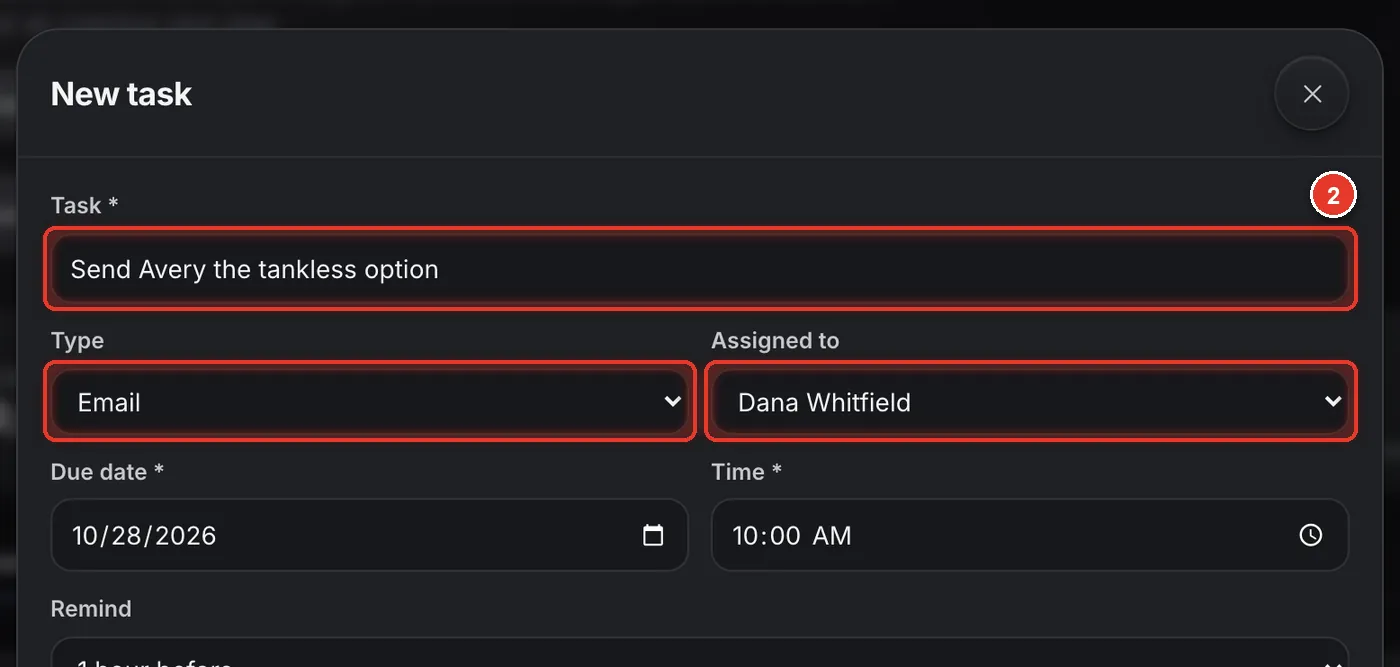
  1. New task: Task, Type and Assigned to.
    Step 1 of 5 New task: Task, Type and Assigned to.
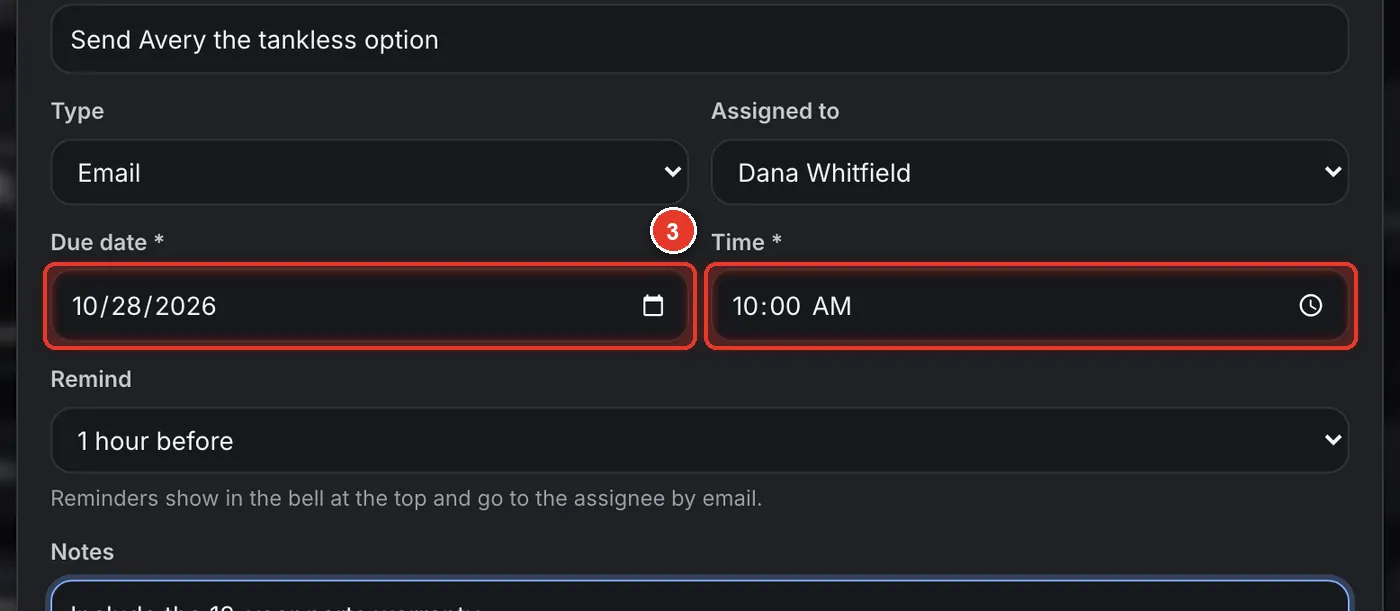
  2. Due date and Time.
    Step 2 of 5 Due date and Time.
  3. Remind: at the due time, 15 minutes, 1 hour or 1 day before.
    Step 3 of 5 Remind: at the due time, 15 minutes, 1 hour or 1 day before.
  4. Due, Upcoming and Done, with a tick box to finish.
    Step 4 of 5 Due, Upcoming and Done, with a tick box to finish.
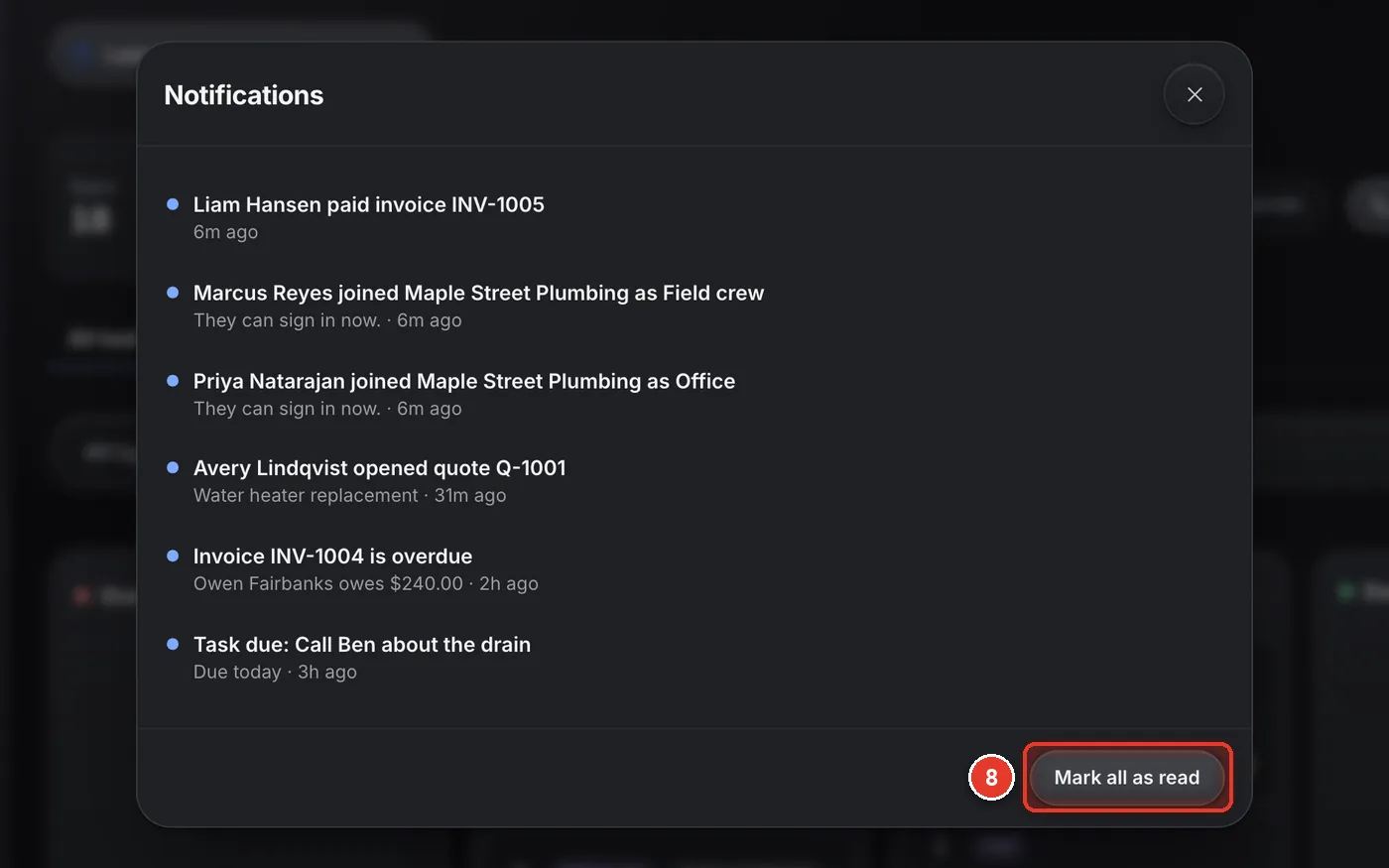
  5. The bell, with Mark all as read.
    Step 5 of 5 The bell, with Mark all as read.

Tasks in the how-to guide, step by step

Why it helps

  • Clear ownership

    Every task has one person and one time, so nobody wonders whose job it is.

  • Reminders where people look

    The bell, email and phone alerts, set per task.

  • Less to remember

    Automations add the routine tasks for you.

Everything in Tasks

Every plan includes every line below.

  • Calendar and saved views

    See tasks on a month or week calendar and drag one to a new day, with Undo. Save filters as views.

  • Date ranges and compare

    Pick a period from presets such as This week, Last 30 days, This quarter or Year to date, or choose days on a calendar. The numbers, charts and trend tags compare it with the period before, or the same dates a year earlier.

  • Stat tiles with charts

    The numbers at the top, such as open pipeline, money owed and work won, come with a small chart of the last eight weeks and a tag that says up or down compared with before. If there is not enough history to chart, you just see the number.

  • Tasks on contacts and deals

    Add one from any record.

  • Assigned to

    Anyone on the team.

  • Reminders

    At the due time, 15 minutes, 1 hour or 1 day before.

  • Phone alerts

    On iPhone and Android from the home screen app.

  • Due, Upcoming and Done

    Three tabs on the Tasks page.

  • Task types

    Follow up, Call, Email, Text, Quote or Other.

  • Created by automations

    A Create task step in any automation.

  • On Today

    Due tasks with a button for the next move.

  • Call queue

    Work your Call and Text tasks one after another: one tap to log the result, then the next. Try again in an hour, tomorrow morning or in 2 days.

Tasks is in every plan

Plans differ only in how many people can sign in. Month to month, no setup fee.

LoonStack CRM Solo

30-day free trial

$69/month

1 user

Every feature included, Tasks too.

Start free trial of Solo

$0 today. Card required. 30-day free trial, then $69 a month, renewing automatically until you cancel. Cancel before day 30 in Billing and you pay nothing. To add a second person, switch to Crew in Billing.

LoonStack CRM Crew

Best for teams of 2 to 10

$129/month

Up to 10 users

Every feature included, Tasks too.

Start free trial of Crew

$0 today. Card required. 30-day free trial, then $129 a month, renewing automatically until you cancel. Cancel before day 30 in Billing and you pay nothing. We remind you 7, 3 and 1 day before the trial ends.

LoonStack CRM Company

30-day free trial

$199/month

Unlimited users

Every feature included, Tasks too.

Start free trial of Company

$0 today. Card required. 30-day free trial, then $199 a month, renewing automatically until you cancel. Cancel before day 30 in Billing and you pay nothing. We remind you 7, 3 and 1 day before the trial ends.

Switch between Solo, Crew and Company anytime from Billing in the CRM. Full pricing, website bundles and terms

See Tasks with your business in it

Every plan has every feature. 30-day free trial, $0 today. Cancel before day 30 and you pay nothing.

Questions first? Email [email protected] or request a call. A written reply usually comes within one business day.